AI ART UPSCALING GUIDE
How to Upscale Anime & AI-Art Images Without Losing Sharp Lines
A photo upscaler will blur your anime outlines and smear the clean colours in AI art — because those neural nets were trained on photographs, not illustrations. Upscaling anime or AI art therefore needs a different model, one that preserves hard edges, flat colours, and transparency. Here’s the exact workflow that keeps your lines crisp — free, no signup.
Why a “Photo” Upscaler Blurs Anime Lines
The General model is fantastic for real photos — it knows what skin, hair, and brick look like in the real world, so it reconstructs realistic texture. But anime, cartoons, and most AI-generated art are the opposite of photo-realistic: they use solid flat colours, hard outlines, and stylised shading. A photo-trained model “smooths” those hard edges because, in the real world, hard outlines at that contrast almost never exist. The result is a recognisable but slightly melted looking image — outlines thicker in some places, colours bleeding into each other.
The Plus model is trained specifically on illustrations, comics, and anime. It expects sharp edges and flat colour regions, so it respects lines instead of smoothing them away. That alone is usually the difference between “good” and “great” when upscaling art.
Use the ‘Plus’ Model (and When to Skip It)
In the model dropdown on the upscaler, the four options map to content like this:
| Model | Best for | Scale options | Transparency? |
|---|---|---|---|
| Plus | anime, comics, AI art, logos, text, illustrations | 2× / 4× | ✅ Yes — alpha channel preserved |
| General | photos (portraits, landscapes, products) | 2× / 4× | ❌ No — fills transparent areas with white/background |
| Diffuser (premium) | tiny inputs needing max texture fidelity (photo or art) | 6 MPx / 4 MPx / 2×/3×/4× | ❌ No transparency |
| Diffuser-lite | budget Diffuser on the free quota | 4 MPx / 1×/2×/3×/4× | ❌ No transparency |
Keep Transparency: PNG vs WebP
Many anime/art pieces are delivered as PNGs with a transparent background so they can be dropped straight into a video editor, thumbnail, or design. Two settings affect whether that alpha channel survives:
- Output format matters. PNG always preserves transparency. WebP can preserve it, but the “transparent PNG to WebP” path is fiddlier and many older viewers don’t render WebP alpha correctly.
- Model matters more. Only the Plus model keeps the alpha channel; the General and Diffuser families flatten transparency onto a background.
So: to upscale a transparent anime PNG and keep it transparent, pick Plus and leave the output as PNG. (If you later want a smaller file, you can always convert the downloaded PNG to WebP yourself in any editor.)
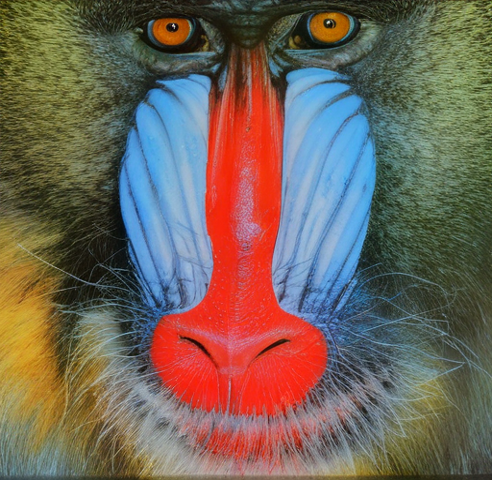
Fig. 1 — a before/after upscale. Line‑based artwork responds best to the Plus model, which keeps edges clean instead of “smudging” them.
Step-by-Step: Upscale Anime/AI Art
Open the free AI Image Upscaler and follow these four steps:
Upscale my anime/art for free →
Can I Use the Diffusion (SUPIR) Model for Art?
Yes — and you should consider it when you have a very small source (e.g. a 256×256 AI render you want at poster size). The Diffuser model (SUPIR) is diffusion‑based and reconstructs texture differently: it can take an optional text prompt describing the subject, which steers the kind of detail it adds.
- Give it a prompt like “sharp anime outline, cel‑shaded, clean linework” and it leans into clean edges.
- Diffuser is the one premium model — it needs a small paid balance (€1+ unlocks it instantly; your balance never expires).
- It does not preserve transparency, so keep it for opaque art only. For transparent PNGs, stick with Plus.
Common Mistakes That Soften Your Art
| Mistake | Why it softens the art | Fix |
|---|---|---|
| Using General on anime | Photo model smooths hard outlines | Switch to Plus |
| Forcing 4× in one pass on a tiny input | Model has too little to anchor the lines | Run Plus 2× twice, or use Diffuser with a prompt |
| Leaving Face Enhance on | Face Restoration is trained on skin — it can blur ink lines near faces | Turn it off for non‑photographic art |
| Downloading a flattened PNG as WebP | Default WebP path can drop the alpha channel | Keep PNG output when transparency matters |
| Not starting from the best source | Upscaling amplifies whatever flaws exist | Begin with the highest‑resolution render you have |
Related Tools for Artists
Once your art is upscaled, these free tools on the same site help finish the job:
- Image Generator — create a brand‑new AI render at roughly the resolution you need, then upscale it.
- re‑Imagine — redraw an existing image into a new artistic style (Ghibli, Van Gogh, pixel art, …) with FLUX Kontext.
- Bulk Image Converter
Frequently Asked Questions
Does AI upscaling make anime look “plastic”?
Only with a photo model. The Plus model is trained on illustrations, so it keeps anime colours and outlines sharp. The General model is the one that turns line art into a “plastic” looking blur — avoid it for art.
Can I upscale a GIF or APNG (animated PNG)?
The upscalers process a single static frame, so animated formats (GIF, animated WebP/APNG) are rejected by the validator. Export a single frame as a PNG/JPG first, upscale it, then re‑animate it in a video editor if needed.
Which is the best free anime upscaler?
For most anime/AI‑art, the Plus 4× model on this site is the best free choice — it preserves transparency, keeps hard edges, and runs on the free daily quota. If you want to go to a paid option, Real‑ESRGAN‑AniSuc and Waifu2x are also excellent, but they require local install.
I lost the transparent background after downloading. What happened?
That happens when the General/Diffuser model flattened your PNG, or when WebP was selected. Re‑upload with the Plus model and choose PNG** output to restore the alpha channel.
How many anime images can I upscale for free?
Everyone gets €0.30 of free processing per IP per day. A 2× upscale of a typical 1080p render costs a few cents, so you can process dozens per day. Need more? A €1–€100 top‑up never expires and adds bigger discounts at higher balances.
Ready to Upscale Your Art?
The secret sauce for anime and AI art isn’t “more AI” — it’s the right AI. The Plus model is trained on illustrations, so it protects your outlines and flat colours instead of melting them, and it keeps transparency intact. Four clicks (upload → Plus → 2× or 4× → download) and your art is crisp, wall‑ready, and still free.
Upscale my anime/art for free →
No account required · Free daily quota · No watermark · Images auto‑deleted
Want the big picture on models? The main how‑to guide covers the full model decision tree, and how AI upscaling works explains the architecture behind these models. Curious when AI gets anime art right and when it smudges the lines? See AI upscaling wins & fails. Need a different style? re‑Imagine redraws art in 20+ styles. Questions? Discord.